
Setting custom weekends per location
In elapseit, you can customize your corporate calendar to match various global work schedules and flexible individual hours. The Custom Weekends feature allows you to define unique weekends for different geographic locations or tailored local schedules.
To create a location rule you should follow the steps:
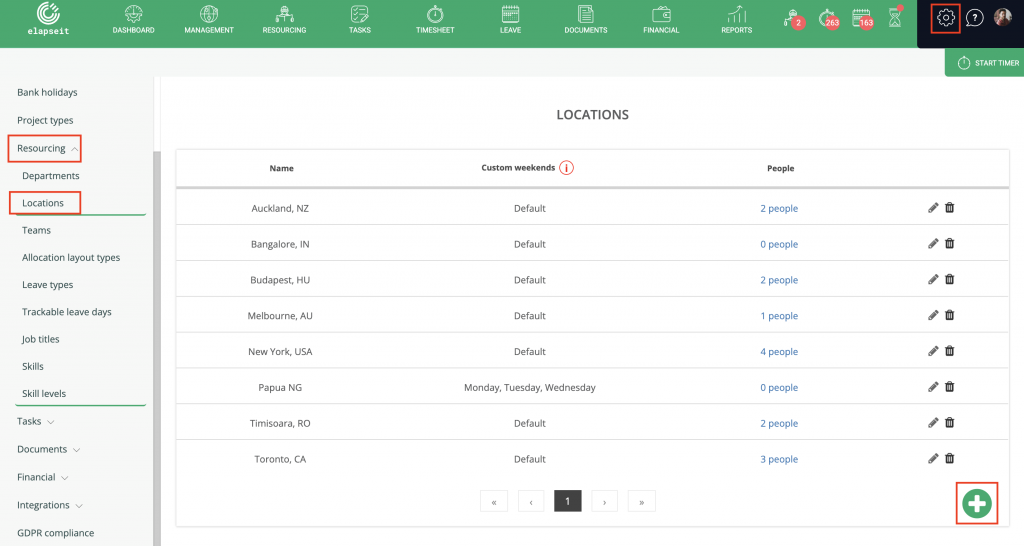
- Click on the Settings (gear icon) in the top right corner of the main navigation bar.
- Select Resourcing > Locations from the expanded dropdown menu.
- To add a new location rule, click the green plus (+) button located in the bottom right corner of the page.
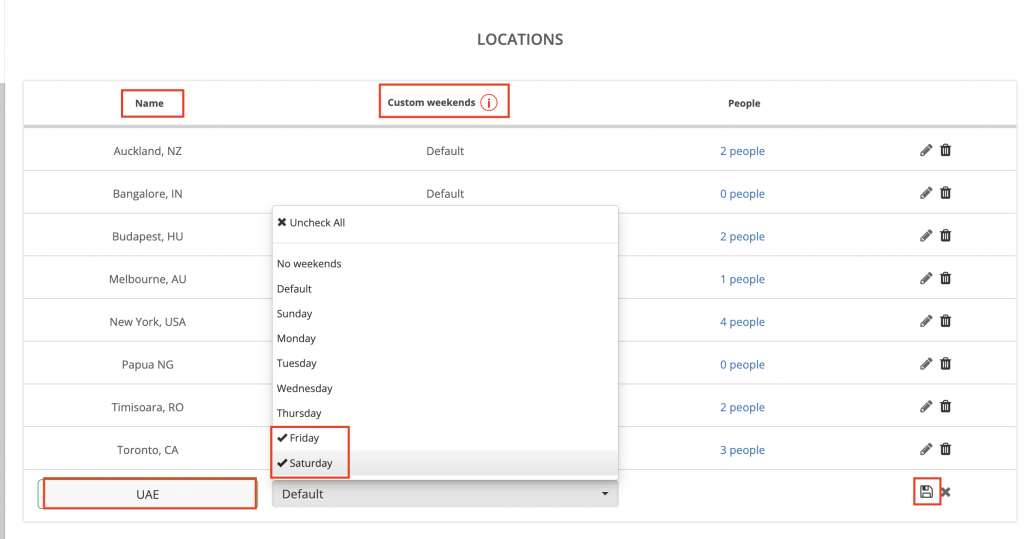
4. In the new row that appears at the bottom of the table, type the location name (e.g., UAE) into the Name column field.
5. Click the dropdown menu under the Custom weekends column.
6. Check the boxes next to the specific days you want to set as the weekend for this location (e.g., Friday and Saturday).
7. Select Save button, to finalize the new location rule.
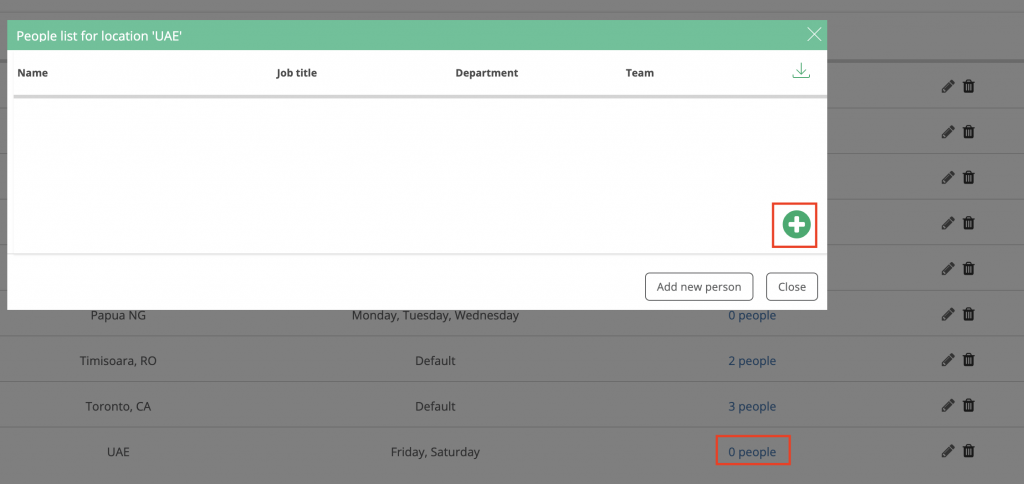
8. Locate your newly created location rule in the table list and select the text link showing the number of users under the People column (e.g., 0 people).
9. A popup window titled “People list for location [Location Name]” will appear on your screen. Select the green plus (+) button inside the popup window to begin assigning your team members to this specific location schedule.
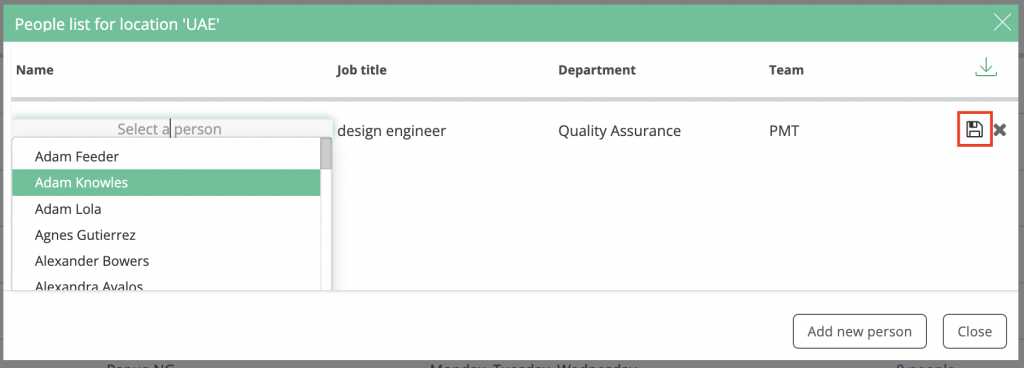
10. Click on the Select a person dropdown menu in the Name column.
11. Choose the team member you want to assign to this custom weekend location from the list (e.g., Adam Knowles). Their job title, department, and team will automatically populate.
12. Select the Save button to finalize adding people to the location.
With these steps complete, your new location scheduling rule is fully active. You do not need to configure anything else; the updated calendar logic instantly updates across the platform.You can verify and view your newly created custom weekends in three main areas:
- Resourcing Planner: The custom weekend days will show up as green columns on your team’s timeline matrix, keeping your resource capacity data entirely accurate.
- Leave Planner: Non-working weekend days are automatically skipped during holiday or time-off balance deductions based on the employee’s location rules.
- Timesheet: The custom weekend days will be clearly highlighted as non-working days directly in the employee’s weekly logging grid.